
NOTE: This is not the process to follow when Transferring an Asset to a different Cost Center.
If an asset is missing a Coordinating Cost Center, you can add it to the asset in Workday.
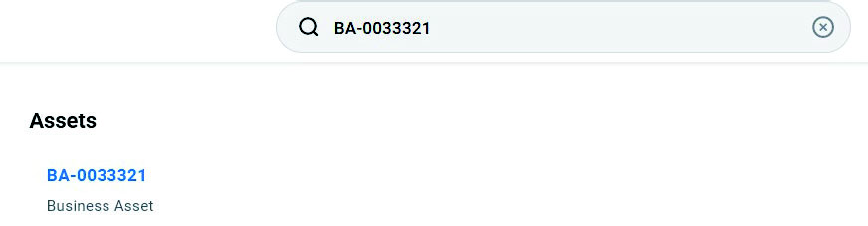
Search for the asset in Workday. Click on the Asset ID (BA Number) of the asset to open it.
Notice that the Coordinating Cost Center field is empty.
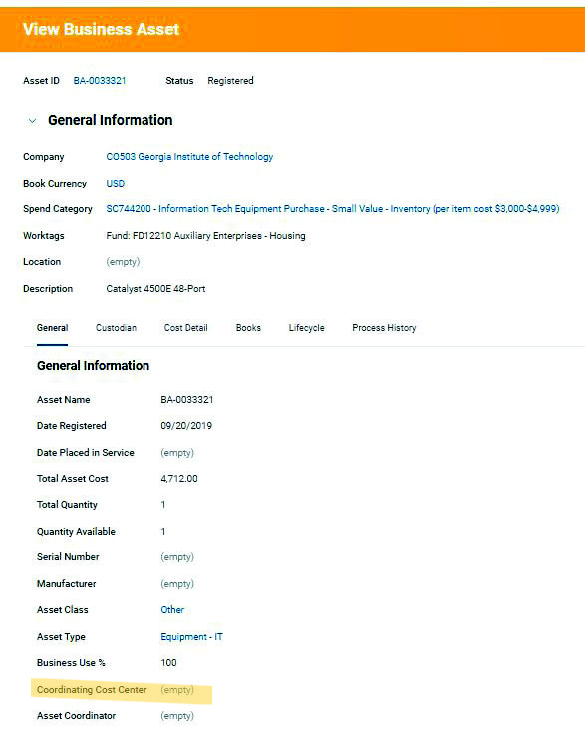
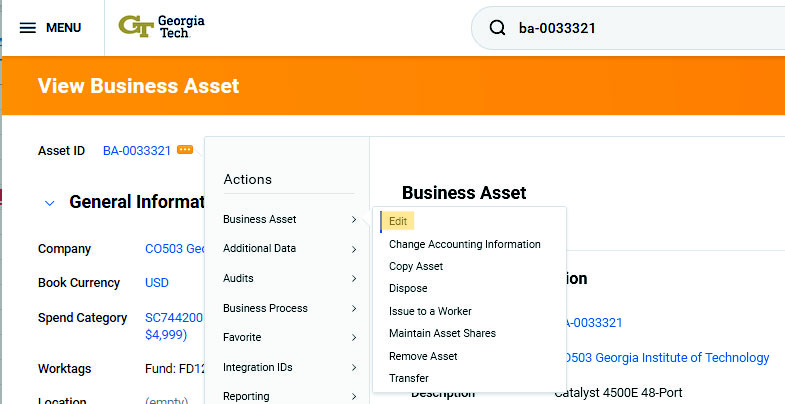
Hover over the Asset ID and click on the Related Actions icon. Hover over the Business Asset option, and click Edit.
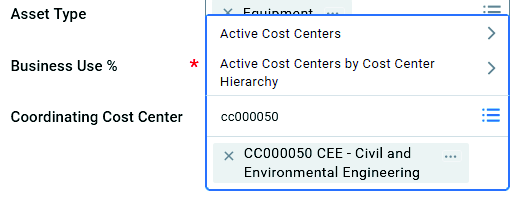
Scroll down to the Coordinating Cost Center field and click in the textbox. Enter the Cost Center Code and press Enter. Click OK and Done to save the changes.
To verify the Cost Center you added has at least one Property Coordinator, scroll to the bottom of the page and click on the Cost Center that you added to the Coordinating Cost Center field to view the details of the Cost Center.
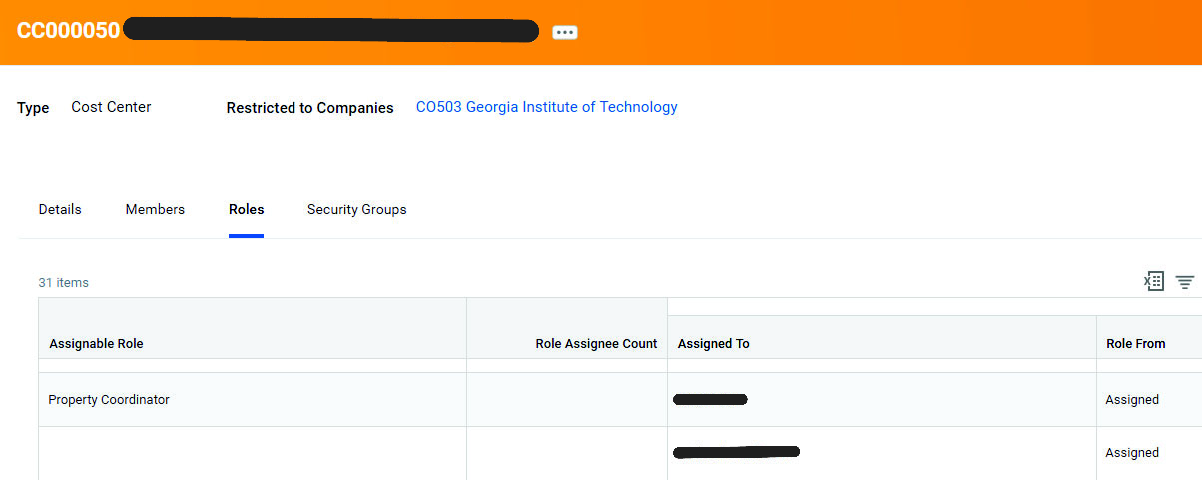
Click on the Roles tab.
In the Assignable Role column, look for Property Coordinator (you can also click on the column heading and filter for this Role). Verify there is at least one person assigned to this role, the person is not terminated, and is the correct person.
If no Property Coordinator is listed, or if a person is listed but they should no longer be a Property Coordinator for your Cost Center, please follow the instructions to Add or Remove a Property Coordinator for a Cost Center.